

Shopify Order Management: Automating Your Order Workflow
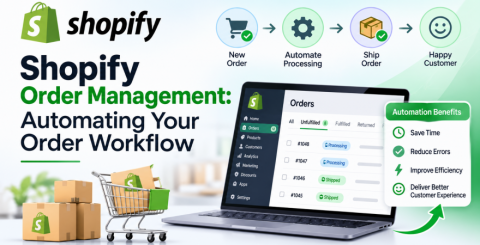
Why Shopify order management needs automation
Shopify order management is the work between a customer clicking pay and the parcel arriving: checking the order, picking stock, buying a label, shipping, and keeping the customer informed. Shopify handles much of this inside the admin, but the repetitive steps still eat hours once you pass a few dozen orders a day.
Automation takes those steps off your team. Tagging, routing, label creation and tracking emails can all run without someone touching each order, which cuts errors and speeds up dispatch. It also frees you to spend time on the orders that really need a person, such as a high-risk payment or a split shipment.
This guide explains how Shopify order management works in the admin, which steps to automate first, and how a Shopify order management app can automate labels and tracking. It ends with a step-by-step setup you can follow this week. Features and limits vary by plan, so check your own Shopify admin as you go.
What Shopify handles for you
Shopify's admin already works as a basic order management system, and Shopify says order management and fulfillment are included in your plan. Everything starts on the Orders page, where you can filter, sort, search, tag, and add notes to orders. You can also save custom views, so your team sees a list such as "unfulfilled orders shipping to Australia" in one click.
The main built-in tools are:
Bulk actions: fulfill, request fulfillment for, or cancel several orders at once.
Bulk printing: buy and print up to 100 shipping labels, plus packing slips and custom forms, in one go.
Order editing and draft orders: change an order before it ships, or create orders and invoices for phone and in-person sales.
Split, merge, and routing: handle partial orders and multi-shipment orders, and send each order to the best fulfillment location, including a third-party warehouse.
Inventory sync: update stock across locations and channels, with support for up to 1,000 locations.
Customer notifications and returns: order updates through the Shop app or branded emails, plus self-serve returns and return labels.
Shopify Flow: automate fulfillment steps, flag high-risk orders and draft shipping labels.
That covers the basics well. The gaps appear when you ship under your own carrier accounts, want live rates from several carriers at checkout, or need labels and order tracking that follow a carrier's own rules. That is where a Shopify order management app helps, such as PluginHive's Shopify Multi Carrier Shipping App, which handles rates, labels, and tracking for several carriers in one place.
The Shopify order workflow, stage by stage
A typical Shopify order passes through six stages, and each one can run by hand or automatically. The table shows the difference.
|
Stage |
By hand |
Automated |
|
Order placed |
Open each order and check the payment and address |
Shopify Flow tags the order and flags high-risk payments for review |
|
Inventory and location |
Check stock location by location |
Inventory syncs across locations, and smart routing picks the fulfillment location |
|
Pick and pack |
Print packing slips one at a time |
Bulk print packing slips and forms for a whole batch |
|
Shipping label |
Copy the address, weight and size into a carrier portal |
Labels bought in bulk in the admin, or created by a shipping app using your carrier account |
|
Order tracking and updates |
Paste tracking numbers and email customers |
Tracking number attached to the order, and status emails sent automatically |
|
Returns |
Handle requests by email |
Self-serve returns with return labels |
Stages 4 and 5 usually cost the most time. If copying an address and parcel details into a carrier portal takes 90 seconds, a store shipping 80 orders a day spends two hours a day on it. Add pasting tracking numbers and answering "where is my order" emails, and shipping admin can fill much of a working day. Those numbers are an illustration, so time your own process before deciding what to automate.
Signs your manual process is breaking
You are ready to automate when the same few problems keep coming back. Look for these:
Orders wait for labels: Paid orders sit in the unfulfilled list because one person has to key in each address and parcel size before anything ships.
Typing errors cause mistakes: Wrong services, wrong weights, and mistyped addresses lead to delays, extra charges, and returned parcels.
Customers keep asking where their order is: Tracking numbers go out late or not at all, so your inbox fills with status questions.
Sorting depends on memory: Only one team member knows which orders need special handling, and a day off causes a backlog.
Your team switches between carrier portals: You ship domestic and international orders with different carriers, and each needs its own login and process. A multi-carrier shipping app can bring them into one dashboard.
Sale days overwhelm you: A promotion doubles your orders, and manual steps cannot keep up.
One or two of these is normal for a growing store. Three or more means manual order handling is costing you time and customer trust.
What to automate first
Start with shipping labels and tracking, because they take the most time and have the clearest payoff. After that, move up the workflow in this order. You do not need separate Shopify order management software to begin, since Shopify's own tools cover a lot.
1. Shipping labels and order tracking. Buying labels and sending tracking numbers is repetitive and error-prone. Shopify can buy and print labels in bulk, and a Shopify shipping app can do the same under your own carrier accounts. PluginHive’s Shopify Australia Post Shipping App and Shopify FedEx App, for example, can create labels automatically when an order is placed. If you ship with several carriers, the Shopify Multi Carrier Shipping Label App handles labels for all of them in one place. Either way, the tracking number should attach to the order and reach the customer without anyone pasting it.
2. Tagging and risk flags. Use Shopify Flow to tag orders as they arrive, for example, international, gift, or express, and to flag high-risk orders for review. Combine the tags with saved views on the Orders page, and each team member opens a ready-made queue instead of searching.
3. Inventory and routing. Inventory sync keeps stock accurate across locations and channels, which prevents overselling. If you have more than one location, smart order routing sends each order to the place best able to fulfill it. When an order needs to ship in multiple packages, Shopify partial fulfillment also helps you manage separate shipments without marking the entire order as fulfilled at once.
4. Customer updates and order tracking. Order notifications and tracking emails answer a question customers ask often. Switching them on can cut support tickets quickly. A Shopify order tracking app such as PluginHive’s Shopify Shipment Tracking app sends a status email each time the carrier updates the parcel and, on paid plans, adds a branded tracking page to your store.
5. Returns. Self-serve returns and return labels take the back-and-forth out of exchanges. Leave this until the outbound workflow is stable, since returns depend on it.
Automate one stage at a time and check results for a week before adding the next. That way, if something breaks, you know which change caused it.
Automating labels and tracking in a real workflow
The clearest way to see the pieces working together is an example. Take a store that ships domestic orders with Australia Post and international orders with FedEx.
At checkout. The customer sees live shipping rates for their destination. PluginHive's Australia Post and FedEx apps quote from your product weights and dimensions, and can include your negotiated account rates. You can also set up Shopify shipping rules based on product weight and order value to control which shipping options customers see. Live rates need Shopify's carrier-calculated shipping feature, though flat-rate and free shipping do not.
When the order arrives. It lands on the Orders page. A Shopify Flow rule tags it as domestic or international, and a saved view groups the day's international orders for review.
At label time. Both apps can create the label automatically when the order is placed, as a PDF or PNG, with postage charged to your carrier account. If you ship with more carriers than these two, the Shopify Multi Carrier Shipping Label App covers around 30. It generates a label in one click, prints hundreds at once, and attaches the tracking number to each order, so nobody pastes it. For international shipments, make sure your product-wise Harmonized System (HS) codes for Shopify orders are configured correctly to support customs documentation.
At dispatch. Instead of arranging each collection by hand, you can request carrier pickups from the dashboard and print a manifest of all packages with the multi-carrier app. The FedEx app can also schedule pickups, and it adds the commercial invoice that international orders need.
After dispatch. The customer gets a status email each time the carrier updates the tracking. The Shopify Shipment Tracking & Notifications app adds a tracking page where customers enter their order number and email to see progress, and a dashboard that shows shipments from several carriers in one place. You can also display a Shopify estimated delivery date to give customers a clearer idea of when their parcels should arrive.
If something comes back. Return labels are available for supported carriers.
Two limits are worth knowing. The Australia Post app ships from the Shopify-assigned location only, so it suits single-location stores best. And if you buy labels through Shopify Shipping with one carrier, you may not need an app at all. The apps earn their place when you want your own carrier accounts, or several carriers in one workflow. Entry plans start at $9 a month for the multi-carrier app and $19 for the Australia Post and FedEx apps, and PluginHive's Shopify apps page lists the full range, including UPS, USPS, DHL, and Canada Post.
How to set up an automated order workflow
You can set this up in a few working sessions. Follow the steps in order, and test before you go live.
Time your current process. For one day, note how long each stage takes per order: checking, labeling, tracking, customer email. This gives you a baseline to compare against.
Set up your shipping basics in Shopify. Confirm your shipping profiles, rates and fulfillment locations are correct, since everything else depends on them.
Add weights and dimensions to every product. Labels and live rates both rely on them. Missing data leads to wrong quotes.
Create tags and saved views. Decide which orders need special handling, such as international, gift or express, then build saved views for each queue on the Orders page.
Add Shopify Flow rules. Start with two: tag orders by type, and flag high-risk orders for review. Keep the rules simple until you trust them.
Connect your carrier accounts. Use Shopify Shipping, or install a shipping app, such as PluginHive's Australia Post, FedEx, or a multi-carrier app, and enter your own carrier account details.
Turn on automatic labels and tracking emails. Where your app supports automatic labels, enable them, and make sure tracking emails go out when labels are created.
Test with five real orders. Include a domestic order, an international order, a multi-item order, and a split shipment. Check that the label, tracking number, and customer email all match.
Review after a week. Compare the time per order with your baseline from step 1, fix any rule that misfires, and then add the next stage.
If an order fails a test, fix the cause before switching to full automation. Problems often trace back to product data or a carrier account setting.
Metrics to track
Track a handful of numbers each week so you can see whether automation is working. Compare each one with the baseline you timed in the setup steps.
Order-to-label time: how long a paid order waits before its label is printed. This should drop first.
Order to dispatch time: how long until the parcel leaves your hands. It shows whether the whole workflow is faster, not just one stage.
Shipping errors: wrong address, wrong service or wrong item. Count them per hundred orders.
"Where is my order" contacts: how many customers ask for tracking. Automatic tracking emails should reduce this.
Shipping cost per order: the average you pay per parcel, which shows whether rate choices are working.
Minutes of admin per order: the time your team spends on each order, from review to tracking email.
If a number moves the wrong way after you automate a step, look at that step first. A rule that tags the wrong orders or a product with a missing weight is a common cause.
Shopify order management FAQ
What is Shopify order management?
It is how you handle an order from checkout to delivery: reviewing it, allocating stock, fulfilling it, shipping it, tracking it and processing any return. Shopify's admin has tools for each stage.
Does Shopify have a built-in order management system?
Yes. The Orders page, bulk actions, Shopify Flow, inventory sync and returns tools work as a basic system, and Shopify says they are included in your plan. Check your plan for exact features and limits.
Do I need a separate order management system for Shopify?
Not at first. A separate system makes sense when you sell across many channels or warehouses with complex routing rules. Many stores add a shipping app before anything else.
Can I automate shipping labels in Shopify?
Yes. You can buy labels in bulk in the admin, or use a shipping app. PluginHive's Australia Post and FedEx apps can create labels automatically when an order is placed.
How much does a Shopify order management app cost?
PluginHive's multi-carrier app starts at $9 a month; its Australia Post and FedEx apps start at $19, and its tracking app has a free tier. These are separate from your Shopify plan.
Conclusion
Good Shopify order management comes down to removing repeat work from each order. Start with labels and tracking, then add tagging, routing and customer updates one stage at a time. Test each change on real orders, and measure the result against your baseline. Done in that order, automation gives your team time back without adding risk.
Similar Articles
If you need to open an Exchange mailbox without the server that created it, an EDB-to-PST converter is usually the fastest way to get there.

Discover the 4 best iPhone system repair software tools in 2026, comparing features, ease of use, reliability, and recovery options to find the right fit.

Choosing the right electronic health record (EHR) system is an important decision for any medical practice. The right platform can simplify patient documentation, appointment scheduling, insurance claims, billing, and daily administrative tasks.

Running a restaurant involves much more than taking orders and serving food.

Field sales teams handle numerous responsibilities every day. Sales representatives travel between customer locations, conduct meetings, collect orders, record information, and report their activities to managers.

The app development market has evolved significantly over the past decade or so. Its impact on business has been equally consequential.

Offshore IT hiring means recruiting IT professionals who work from another country or region. Companies commonly use this approach for software development, QA, IT support, DevOps, cybersecurity, data, and project management.

By 2026, moving to the cloud is no longer merely a competitive advantage. It is a business necessity. Every organization across the broad spectrum of industries will be challenged to become more agile.
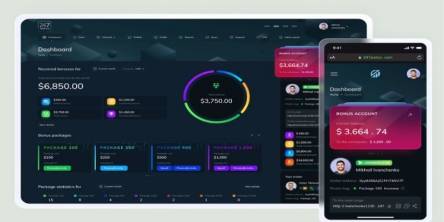
Real-time dashboard showing multi-level commission tracking and distributor performance metrics