

The Motion Brief Problem: Getting More Useful Results from an AI Image to Video Generator
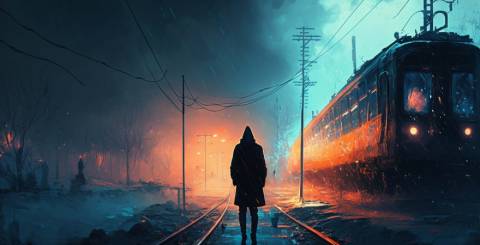
A product photograph can already contain almost everything a campaign needs: the right lighting, a carefully chosen background, and a recognizable subject. Turning it into video introduces a different question. What should actually move?
The obvious answer is often “make it cinematic.” Yet that instruction leaves several decisions unresolved. Should the camera approach the product? Should the product rotate? Should reflections travel across its surface? Should the background remain still?
An AI Image to Video Generator makes it possible to explore these choices without arranging another shoot. The challenge is giving the movement a purpose while protecting the details that made the original photograph useful.
For creators, marketers, and small businesses, a productive workflow begins with a motion brief: a clear account of what changes, what stays recognizable, and what the finished clip needs to communicate.
Why an Attractive Photograph Still Needs Direction
A still image presents one composition. A video must develop that composition over time.
Consider a photograph of a perfume bottle on a stone pedestal. The image establishes the bottle’s proportions, material, color, and position. It does not establish what the back of the bottle looks like or how the scene should respond to a moving camera.
A wide orbit introduces questions the photograph cannot fully answer. A slow push-in asks for a more limited development of the existing view.
This distinction matters when using an AI Image to Video Generator. Every additional movement creates something else to evaluate: newly visible geometry, changing reflections, shifting perspective, or moving edges.
The practical starting point is a shot with a readable purpose. A product clip might emphasize glass and light. A portrait might convey a quiet moment through breathing and a small expression change. An illustration might gain depth through gentle movement between foreground and background.
The movement should support the reason someone chose the image.
Let the Image Establish Appearance
Photo to Video AI provides a browser-based workflow for uploading an image, choosing a compatible model, describing movement, reviewing the credit requirement, and generating a clip.
Its AI Image to Video Generator also includes motion prompt templates such as Natural motion, Slow push-in, Smooth orbit, and Dynamic action. These provide starting directions that users can adapt to their own photographs.
The important word is “adapt.”
A smooth orbit may suit a simple object with clearly visible volume. A tightly cropped portrait may benefit from restrained subject movement and a nearly fixed camera. A watercolor illustration may need its drawn texture preserved as carefully as a product needs its proportions preserved.
Let the source image carry the visual description. Use the prompt to explain what should happen over time.
Repeating every visible detail can make an instruction longer without making the shot clearer. A useful brief spends its attention on action, camera behavior, environmental movement, and preservation.
Write the Motion Brief in Four Parts
A repeatable prompt structure helps separate the decisions that often become tangled together.
First, describe the subject’s action. Second, describe the camera. Third, add any environmental movement. Fourth, identify the details that matter most.
For a product photograph, a starting prompt could be:
“Keep the perfume bottle stationary on the pedestal. Move the camera slowly closer. Let a soft highlight travel across the glass. Preserve the bottle silhouette, cap proportions, amber color, and background composition.”
For a portrait:
“The person breathes naturally and blinks once. Keep the camera nearly fixed. Let a few loose strands of hair move gently. Preserve facial identity, expression, clothing, and lighting.”
These are directions to test, rather than promises of exact preservation.
Their value is that they make review specific. If the bottle changes shape, the result fails an explicit requirement. If the portrait remains recognizable but the camera moves too far, the next attempt has an obvious adjustment.
A vague request for cinematic quality provides fewer clues about what to change.
Choose Model Settings Around the Shot
Photo to Video AI has a dedicated Kling AI Image to Video page and offers Kling 3.0 alongside Kling 2.6 in the compatible model menu.
Kling 3.0 supports clips from 3 to 15 seconds, with mode and sound controls. These choices should follow the intended shot.
For an initial product test, a five-second clip in Standard mode with sound disabled is a practical setup. It gives a simple camera movement room to develop while keeping the first review focused on the picture.
If the concept depends on ambience or dialogue, sound becomes part of the brief. Describe the intended sound clearly, then review it alongside the visuals. A visually convincing result can still need revision if the audio feels disconnected from the scene.
Longer duration also needs a reason. Extending a quiet product shot does not automatically add useful information. A longer clip makes more sense when an action needs time to begin, develop, and finish.
Review the displayed credit estimate after changing settings. Duration, model, and supported output options affect the generation requirement, so a successful short test is a useful decision point before requesting another version.
Prepare the Photograph for the Movement You Want
Photo to Video AI accepts JPG, PNG, and WEBP images. File compatibility is only the first consideration; the photograph also needs to support the intended action.
Look for a clearly visible subject, readable edges, and enough room around anything that should move.
A pet photographed with its ears against the edge of the frame gives little compositional space for head movement. A product partly hidden behind props makes its outline harder to assess. A portrait with heavy shadow across the eyes provides less visible facial information.
When possible, choose a source image whose pose already suggests the desired movement. A standing figure is a more straightforward starting point for a small weight shift than a tightly cropped headshot.
Prepare the framing for the destination as well. A vertical social clip and a widescreen website video place different demands on the composition. Check which aspect ratios the selected model supports before generating.
Keep important details comfortably inside the frame rather than relying on movement to rescue an unsuitable crop.
Use One Change to Learn Something
The first generation should answer a manageable question: does this image support this movement?
Keep the source, model, duration, and prompt stable while changing one meaningful variable.
If a product becomes distorted during an orbit, try a slow push-in. If a portrait’s expression changes too much, reduce the requested facial action. If environmental effects compete with the subject, remove one of them.
Changing the model, camera direction, action, and duration together makes the next result harder to interpret. An improvement may be real, but its cause remains unclear.
A simple note outside the generator can help: record the source image, settings, prompt, and the reason a result was accepted or rejected.
This becomes useful when producing several related clips. A successful motion brief can provide a common approach, with adjustments for each image’s composition.
Review the Middle of the Clip
A strong opening frame is only the beginning of a usable video.
Watch the entire result at normal speed. Then revisit moments where the camera changes perspective, an object crosses another object, or the subject reaches the fullest part of an action.
For product footage, inspect silhouettes, packaging text, reflections, contact shadows, and small construction details. For portraits, inspect eyes, teeth, hands, and facial proportions. For illustrations, check whether linework and texture remain consistent with the source.
Preservation instructions help communicate priorities, but they do not guarantee frame-by-frame accuracy.
Judge the result in its intended setting, too. A subtle movement may work well in a website banner but feel difficult to read in a crowded social feed. A dramatic move may attract attention while making a product harder to examine.
Acceptance criteria should follow the purpose of the clip.
Decide Whether You Need Motion or a Defined Transition
Some ideas begin with one photograph and an open-ended movement. Others depend on reaching a particular final image.
Photo to Video AI offers separate First & Last Frame and Reference to Video workflows for these different needs, with availability depending on compatible models.
First & Last Frame is relevant when both the opening and closing composition matter, such as a planned product reveal or a before-and-after concept. Reference to Video provides additional visual guidance for supported generation tasks.
Choose the workflow before writing an increasingly complicated prompt.
If success requires a specific ending, describe that requirement through the appropriate inputs. If the goal is a restrained animation of one existing composition, begin with the simpler image-to-video workflow.
Give Every Movement a Job
An AI Image to Video Generator becomes more useful when the brief connects movement to a publishing need.
A camera push can draw attention to a product detail. A small gesture can give a portrait warmth. Moving foliage can establish atmosphere around an otherwise quiet scene.
Start with a photograph that already communicates the right thing. Add one clear action, choose settings that give it enough time, and inspect the full result before expanding the idea.
The finished clip should preserve the reason the image mattered while giving the viewer a reason to keep watching.
Similar Articles

Fix common AI avatar generator mistakes in talking videos. Learn five simple habits for scripts, images, pacing, visuals, and review.

The best free CGPA calculator depends on your university and what you need besides a number.
Animate any photo with Kling, Seedance, Veo, MiniMax and Grok Imagine in one browser workspace. Compare results side by side with one credit balance.

A product photograph can be sharp, well lit, and still be difficult to use. The background competes with the item. A reflection hides part of the label.

ChatGPT can turn a rough idea into a first draft, explain an unfamiliar concept, or help organize a project plan in minutes. That speed makes it tempting to treat the tool like an all-purpose expert.

Why AI answer engines overlook manufacturer catalogs: PDFs, bare part numbers, and thin pages hide expertise. Learn how to make products citable.
Anthropic, the American company behind Claude, is among the most closely watched companies by investors in artificial intelligence. But how can an individual invest in Anthropic when the company is not yet publicly traded?

Discover three key factors for optimizing your AI model, including performance, accuracy, and efficiency, to achieve better results and reduce costs.

Building an AI model is only one part of creating a system that works in practice. Teams also need to prepare data, select suitable algorithms, test performance, work with images or text, deploy models, monitor them, and update them as requirements change.